


Running out of storage for emails in your inbox is a common and annoying problem. A full cleanup is pretty easy, but mass deleting specific emails can be a more laborious task. Fortunately, Gmail has features for cleaning up your inbox, making the process much easier than tediously deleting emails one by one. This guide is a comprehensive, step-by-step instruction on cleaning up your inbox according to your needs.
How to Delete Multiple Emails in Gmail Inbox at Once
We won’t drag it out; let’s move straight on to step-by-step cleaning of your email inbox.
It is important to note that this cleaning will not delete all emails from your account. We will address the complete cleaning of your Gmail account, including your archived emails, later.
1. Log in to your Gmail account.
2. Look for the square in the upper left corner next to the refresh button and click on it to check the box. This will select all the emails on the first page of your inbox.
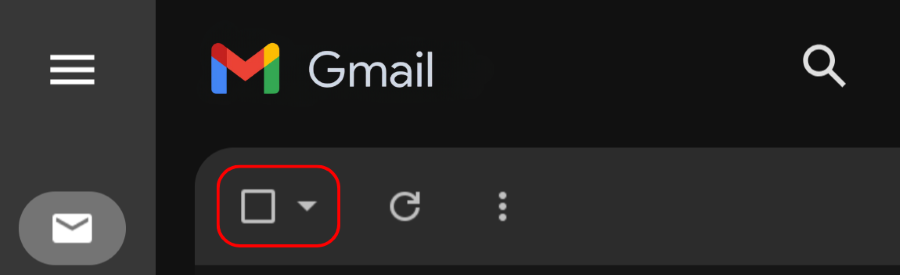
3. When the check mark appears, a line will appear below with a message about selecting visible conversations and a suggestion to “Select all X conversations in the Inbox.” Click to select all emails in your inbox.

4. To the right of the checkbox, you will see a trash can icon. Click on it to delete emails.
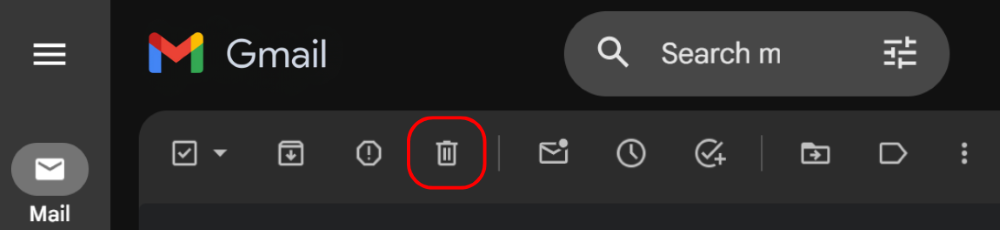
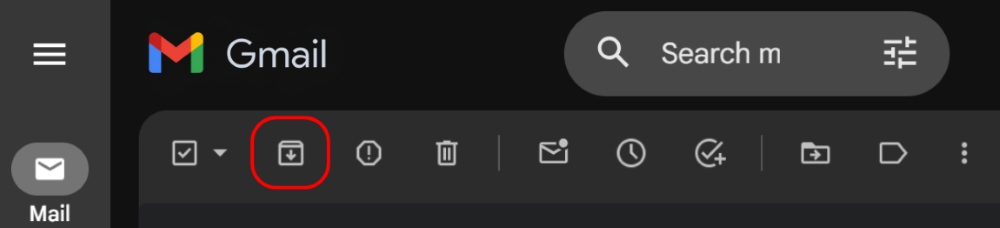
And that’s it, you’re done! To avoid having to mass delete Gmail emails again, try blocking those from users you’re not interested in. To avoid permanently deleting emails, you can also click the button to move them to the archive. This way, you will clear your inbox and save the emails in case you need them later.
How to Delete Multiple Emails in Gmail on a Phone
The method of mass deletion of emails via a mobile app is different and not as convenient as the desktop version. The mobile app does not have a function to select all emails in the inbox, and you can only select the first 50. Here’s how to do it:
1. Tap and hold any email.
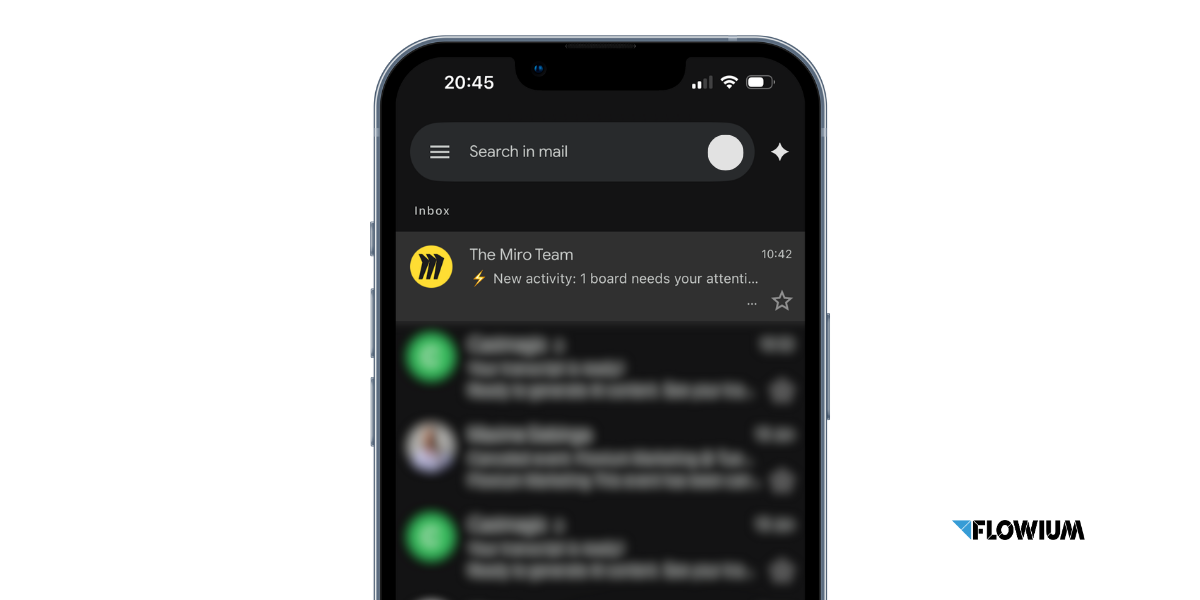
2. Click on the “Select All” checkbox that appears at the top. If it does not appear, scroll down a little.
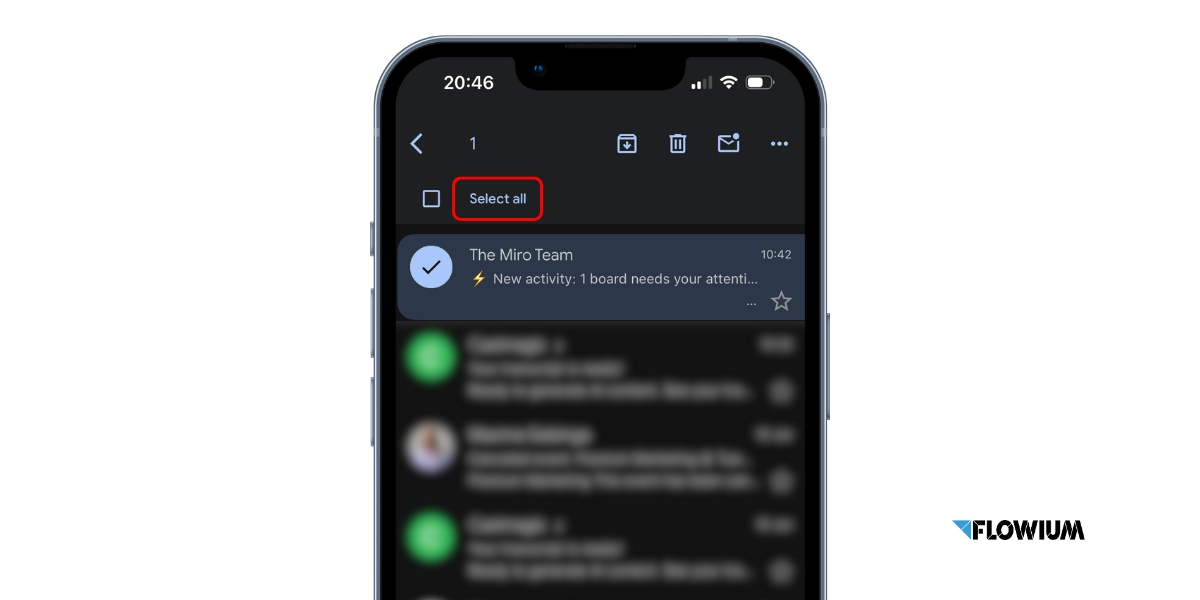
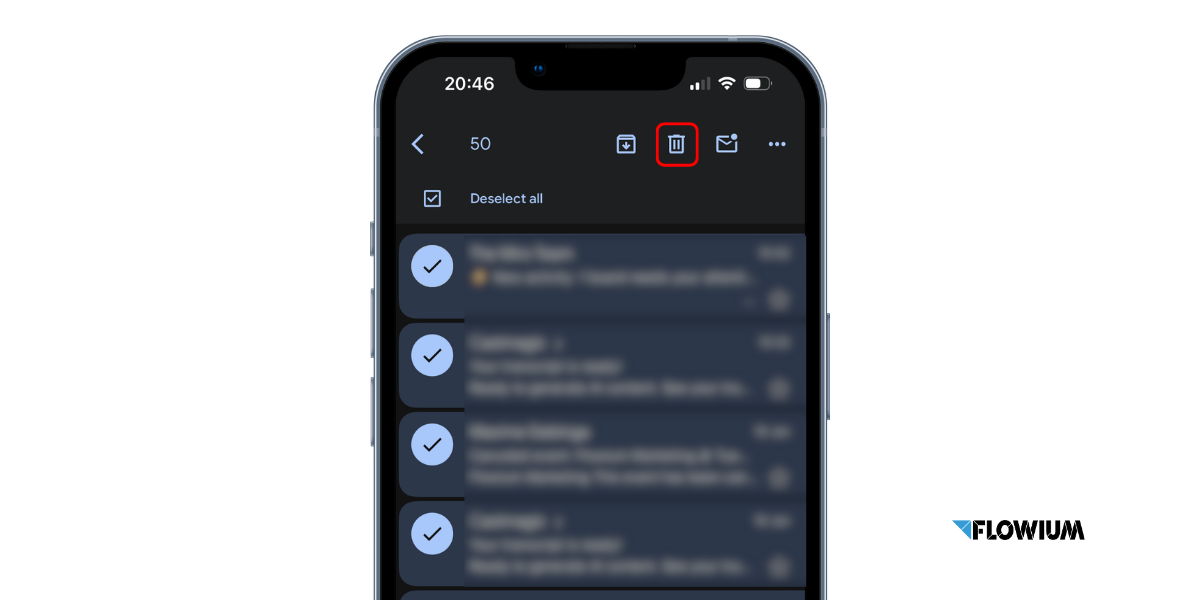
The “Select All” option will only select the first 50 emails. To delete more, you can scroll through and check all unselected emails, or delete 50 and repeat the process.
3. In the upper right corner, click on the trash can icon, and that’s it!
How to Block Emails from an Address in Gmail
To avoid constantly cleaning your mailbox of emails from certain senders that you are not interested in, you can block them in 3 clicks and avoid constant spam that you need to clean up. Here’s how to do it.
1. Log in to your Gmail account.
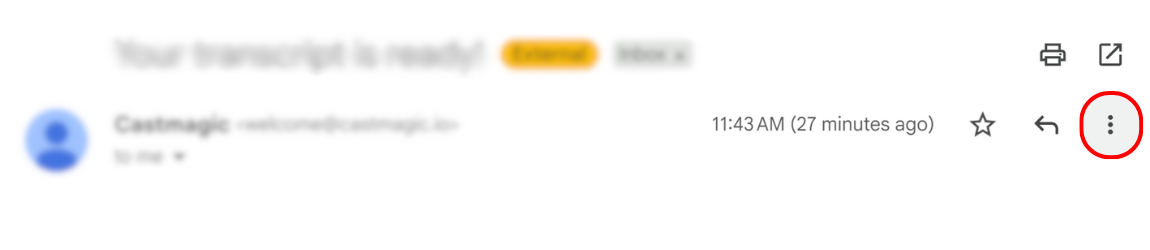
2. Open the message from the sender.
3. In the upper right corner, next to the Reply button, click More.
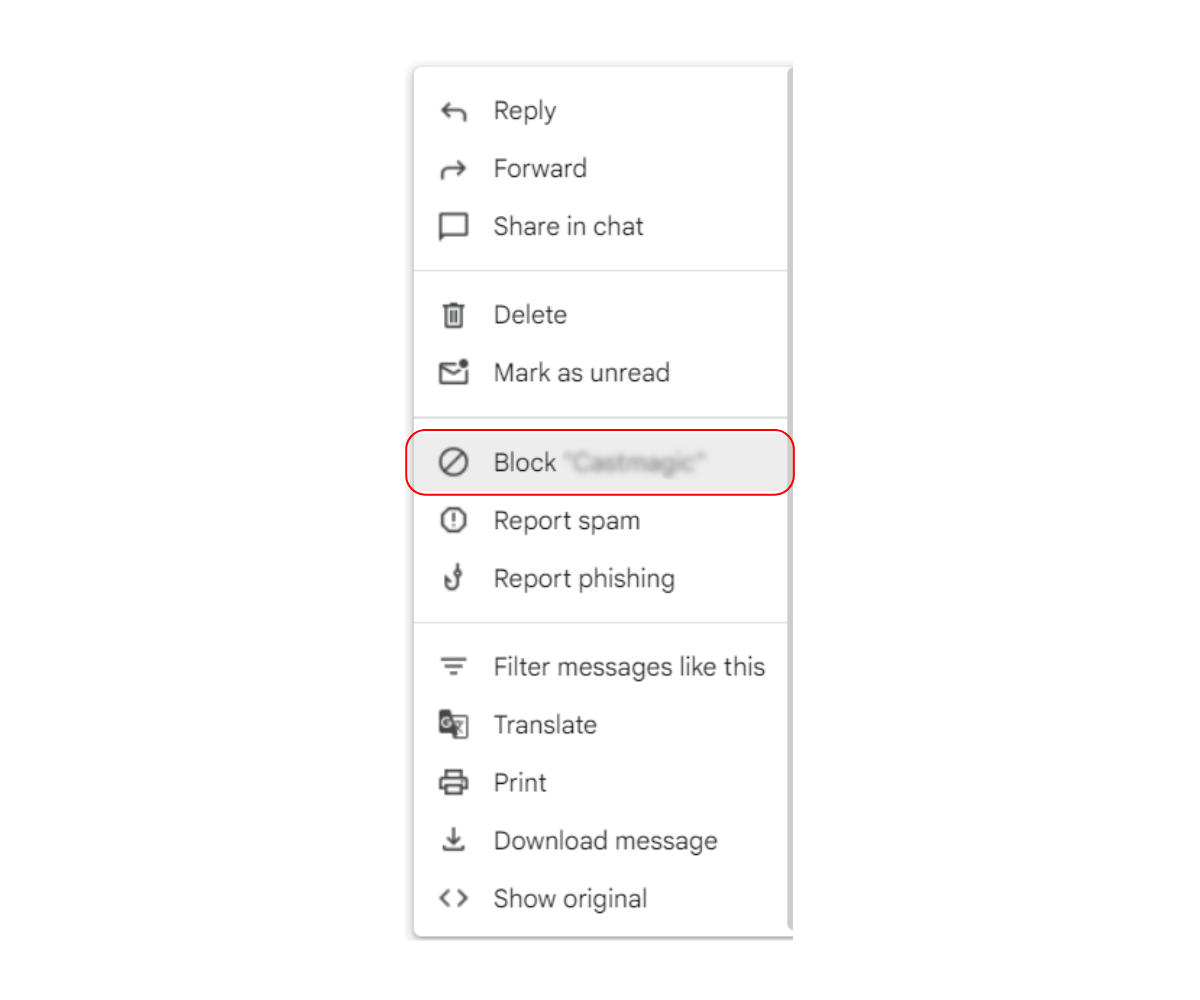
4. In the More section, find the Block sender {nickname} feature and click on it.
How to Delete All Gmail Emails at Once
We have already mentioned that deleting all emails in your inbox does not necessarily clean up all of them in your account, as some of them may be moved to specific folders and thus not appear in your inbox. To completely delete all emails in Gmail, follow these steps:
1. In your Gmail account, open the left sidebar with various options.
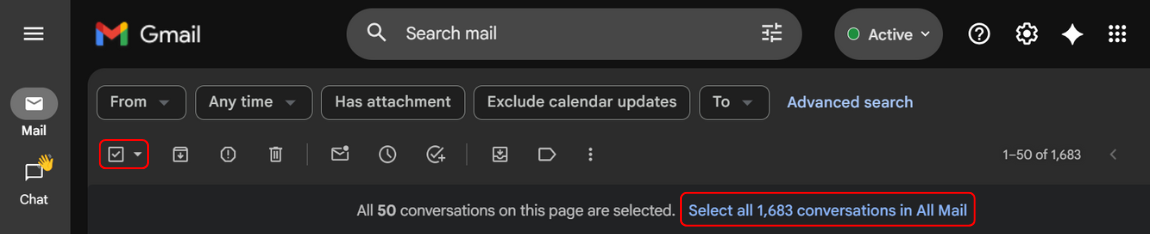
2. Click More, then select All Mail.
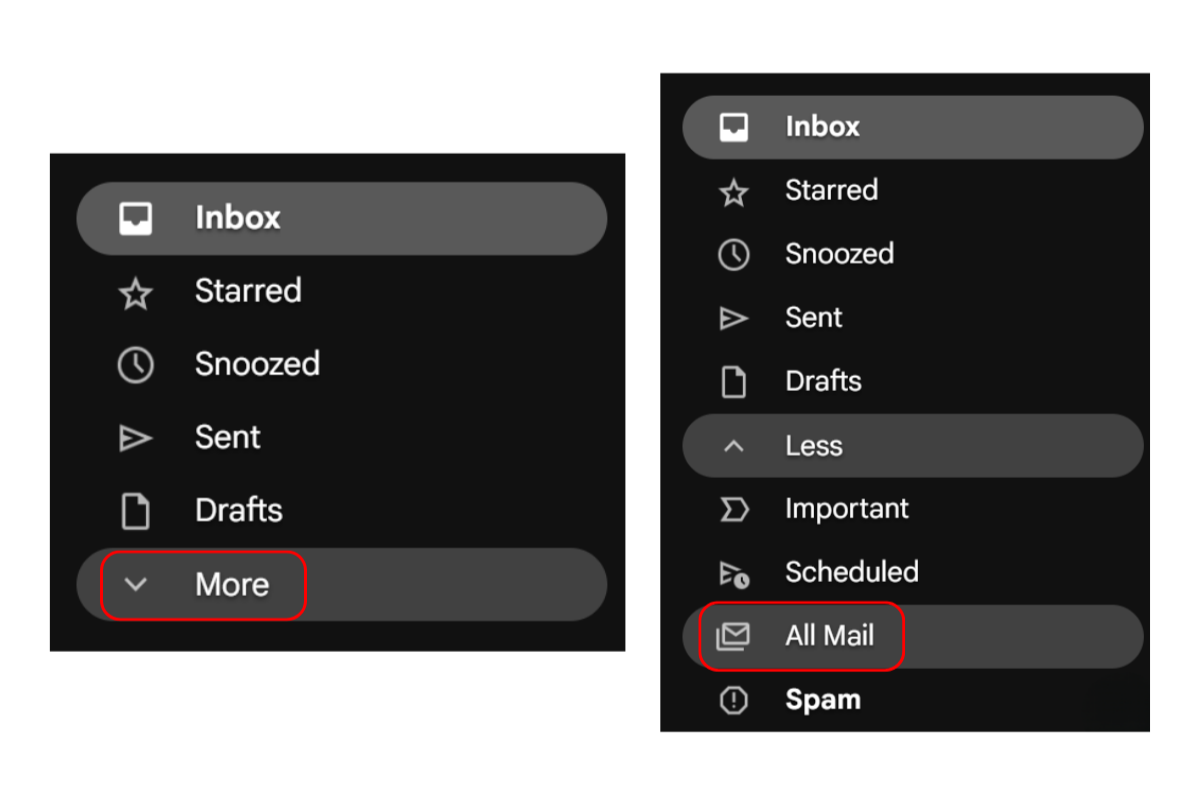
3. Check the box at the top left of the emails to select all of them.

4. In the line that appears, click Select all X conversations in All Mail.
5. Now that you have selected all of them, an icon with an arrow and a trash can will appear to the right of the box you checked. Click on the trash can to delete them, or on the arrow icon to move the emails to the archive so you don’t lose them permanently.

6. Deleted emails will be moved to the trash folder of your account, from where you can restore them, or they will be automatically deleted after 30 days.
How to Delete Gmail Emails Selectively
Completely clearing your inbox is not always the best solution to the problem of overload. Deleting everything indiscriminately carries the risk of permanently losing some truly valuable emails. Blocking a sender only blocks future emails from them, so selective deletion is a better option. Gmail provides great and convenient options for mass selective cleaning of emails by category, sender, or other filters.
You can simplify this cleanup even more by implementing automation in Gmail to auto-delete unwanted emails. We at Flowium, a trusted expert in email marketing, can help you with this. Contact us for a consultation on automating your email.
If you don’t need regular automated cleaning, we provide methods below for manually cleaning certain types of emails in bulk.
How to Delete Gmail Emails in Bulk by Categories
It is very convenient to delete email clusters by categories that Gmail divides them into by default. In personal and business accounts, these categories look slightly different, but the concept remains the same. So let’s move on to deleting by category.
Cleaning Emails by Categories in Personal Accounts
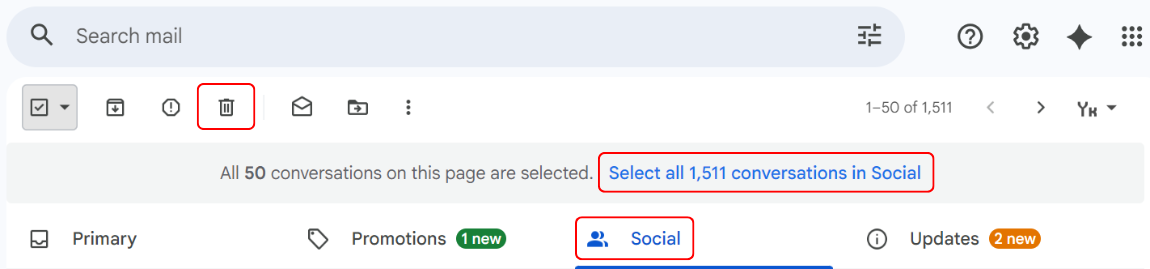
In personal accounts, categories are located in the Inbox tab above the emails themselves. Categories include Promotions, Social, Updates, and Forums. Some categories may be missing if you have not received any emails related to them, usually the Forums.

1. Select the category of emails you want to clean up by clicking on it.
2. Check the box in the upper left corner above the categories.
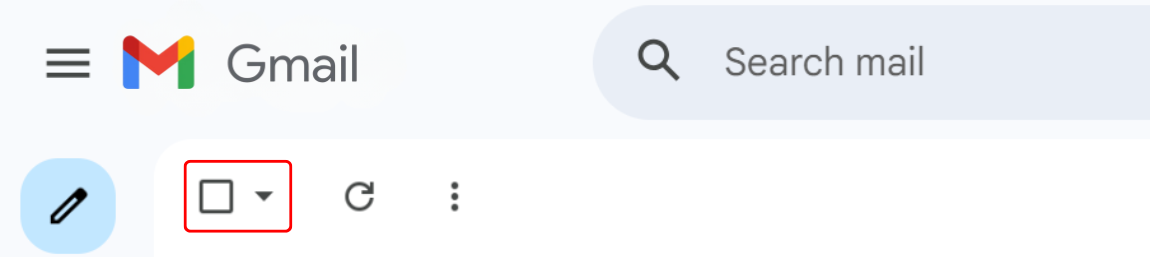
3. In the line that appears below, click on Select all X conversations to select all emails.
4. In the upper right corner above the categories, click on the trash can icon.
Cleaning Emails by Categories in Business Accounts
For certain reasons, in business accounts, email categories are located in the sidebar on the left, under the Basket section. Here’s how to clear these categories:
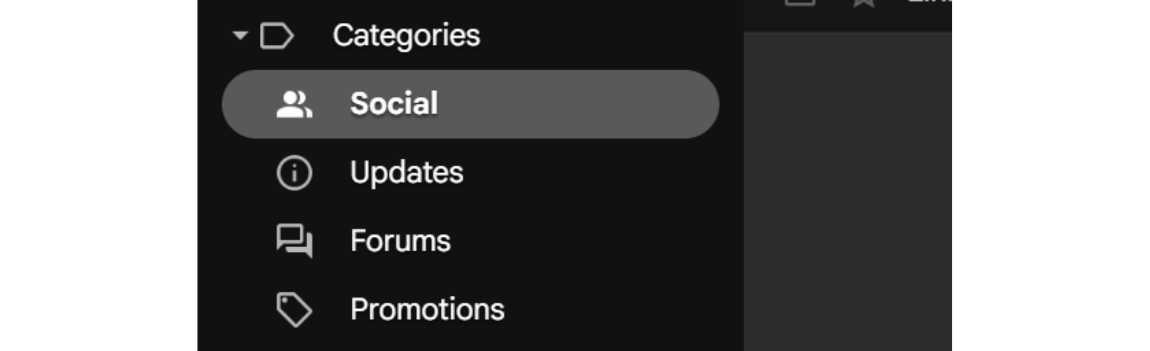
1. Find the Categories section in the sidebar on the left and click to drop down its options.
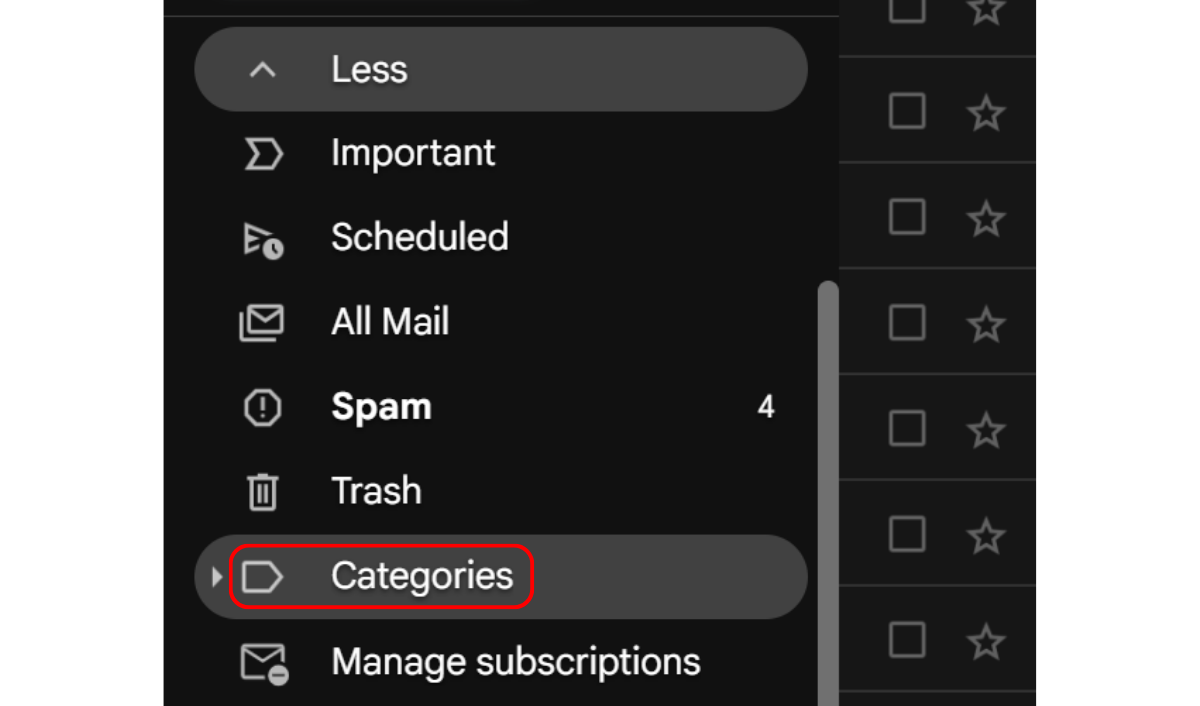
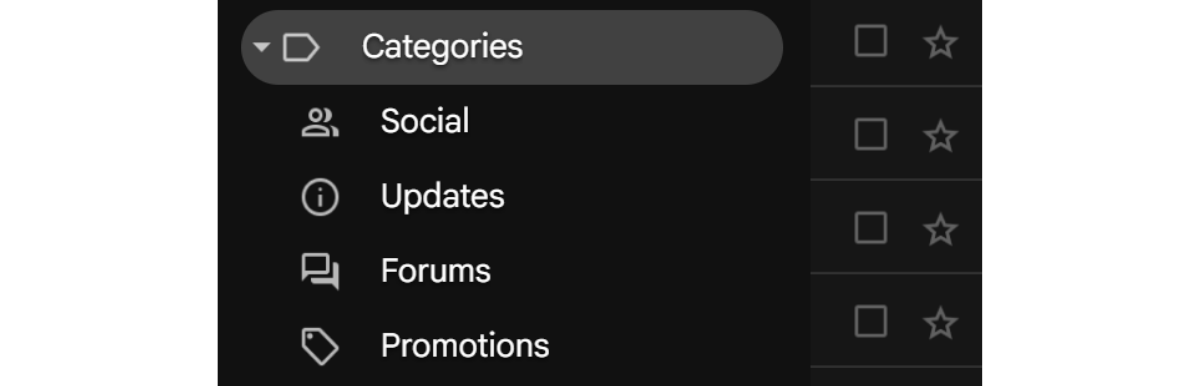
2. From the categories that appear, select and click on one of the four (Social, Updates, Forums, or Promotions) that you want to clear.
3. Check the box at the top-left of your inbox.
4. A line with the blue Select all X conversations option will appear below. Click it to select all emails.
5. Click on the trash can icon to delete.
How to Mass Delete Gmail Emails by Labels
If you have used the labels feature in Gmail and added some of them, later sorted emails, you can clean them up using a method similar to categories, as follows:
1. Find the Labels section on the sidebar on the left and click to drop down the ones present there.
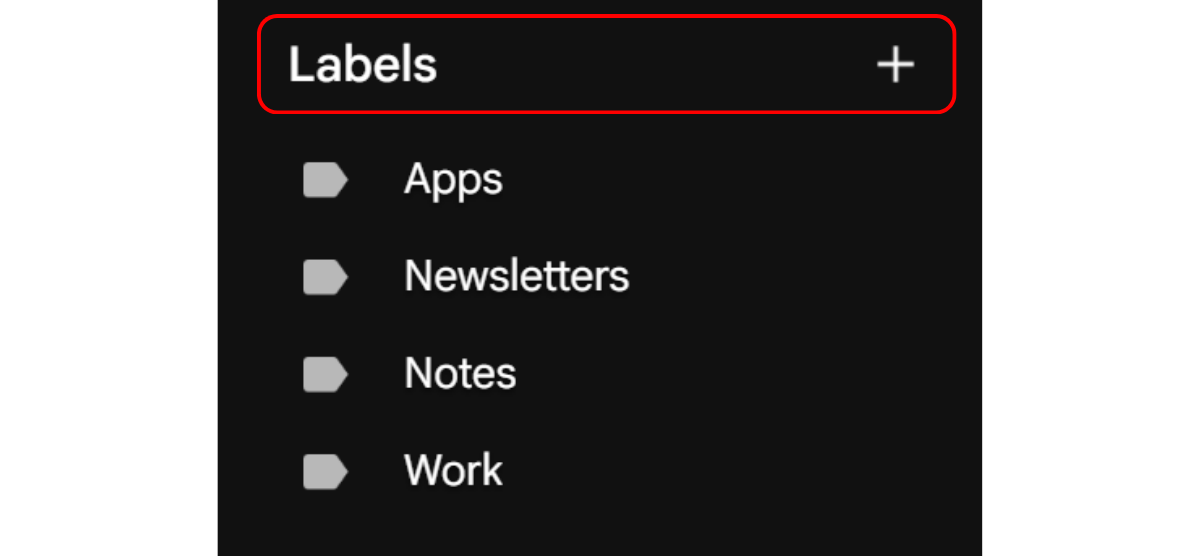
2. Click on the label you want to clear.
3. Then follow the same instructions: check the box in the upper left corner above the emails, click on the blue text Select all X conversations, and press the trash can icon.
How to Delete All Mail in Gmail by Date Range
The following methods of cleaning do not require the sidebar; instead, they all involve using the search bar to select the emails you need. First, we will explain how to select emails by date range and delete them.
1. Deleting emails by time range offers three possible options: before a certain date, after a certain date, and in the interval after and before.
- To mass delete emails before a certain date, enter the following in the search bar at the top of Gmail: before:YYYY/M/D

- To mass delete emails after a certain date, enter the following in the search bar at the top of Gmail: after:YYYY/M/D

- To mass delete emails in a certain date range, enter the following in the search bar at the top of Gmail: after:YYYY/M/D before:YYYY/M/D

2. Click Enter or Return, and Gmail will find all emails within the time period you specified.
3. Check the box in the upper left corner of your email inbox, click on the blue text Select all X conversations, and click on the trash can icon to delete.
Gmail Mass Delete by Sender
To delete emails from a specific sender en masse, once again, go to the Gmail search bar at the top and do the following:
1. Enter the email address of the sender whose emails you want to delete in this way: from:ni******@****in.com

2. Press Enter or Return.
3. Follow the steps for mass delete: check the box at the top-left of your inbox, click the blue text that reads Select all X conversations, and click the trash bin icon to delete.
How to Bulk Delete Gmail Unread/Read Emails
To find and delete all read/unread emails, you also need to use the Gmail search bar at the top. To find and clean them, do the following:
1. To find all unread emails, enter the following in the Gmail search bar: is:unread.

To find all read emails, enter the following in the Gmail search bar: is:read.

2. Press Enter or Return.
3. Check the box at the top-left of your inbox, click the blue text that reads Select all X conversations, and click the trash bin icon to delete.
Conclusion
Now, thanks to us, you know many ways to clean up your Gmail inbox, as well as features for searching emails, blocking recipients, and other options.
If you have a large business account or are simply tired of constantly cleaning your email inbox of unnecessary emails, we recommend that you implement Gmail automation. To do this, you can contact Flowium specialists, experts in email marketing, for easy and quick setup and automation.
FAQs on How to Delete Emails in Gmail
How to permanently mass delete emails?
When you select emails in your inbox or in the All Mail section and click on the trash can icon to delete them, you send the emails to the trash. Emails in the trash are automatically deleted after 30 days. However, if you need to free up disk space immediately, here’s how to delete emails permanently:
1. Go to the trash folder located in the left sidebar.
2. Check the box on the left side above the emails.
3. Click Delete permanently.

How to recover deleted emails?
1. Open the Trash in the sidebar on the left.
2. Select the email or emails you want to recover.
3. Next to the “Delete permanently” button, click on the icon of the folder with an arrow.
4. Select where to move the email, for example, to your inbox.

Is there a way to delete all emails in Gmail?
Sure! Log in to your Gmail account, open the sidebar on the left, click on More, then on All Mail. Check the box to the left above the emails, click on the text Select all X conversations in All Mail and on the trash can icon. Done!
How to mass delete emails on the Gmail app?
1. Open the app.
2. Hold down any email in your inbox.
3. Tap Select All. (It will only select the first 50 emails, so you will need to repeat this action or select each email manually by tapping on it).
4. Tap the trash can icon.
How to delete all unread emails in Gmail at once?
To delete all unread emails, type is:unread in the Gmail search bar above your emails and press Enter or Return. Gmail will list all unread emails, then proceed as usual, check the box above the emails, click on the blue text Select all X conversations, and click on the trash can icon.
How to delete all social emails in Gmail?
- If you have a personal account, click on the Social category in your inbox.
- If you have a corporate account, open the sidebar on the left, unfold the Category option, and select Social.
In both cases, follow the standard procedure: check the box at the top left, click on the text Select all X conversations, and Delete.
How to delete all emails before a certain date in Gmail?
In the search bar above the emails, type before:YYYY/M/D and press Enter or Return. Gmail will find all emails up to the date you specified. Check the box in the upper left corner, click on the text Select all X conversations that appears, and then click on the trash can icon.


